> ## Documentation Index
> Fetch the complete documentation index at: https://docs.summand.com/llms.txt
> Use this file to discover all available pages before exploring further.
# Connect a client
> Add the Summand MCP server to claude.ai, ChatGPT, and other OAuth-aware MCP clients.
The Summand MCP server is a remote, OAuth-authenticated streamable-HTTP endpoint. There is nothing to install — every client uses the same URL and follows the standard OAuth discovery flow.
## Endpoint
```
https://mcp.summand.com/mcp
```
The endpoint is stateless: each request constructs a fresh server instance scoped to the bearer token in the `Authorization` header.
## Add to claude.ai
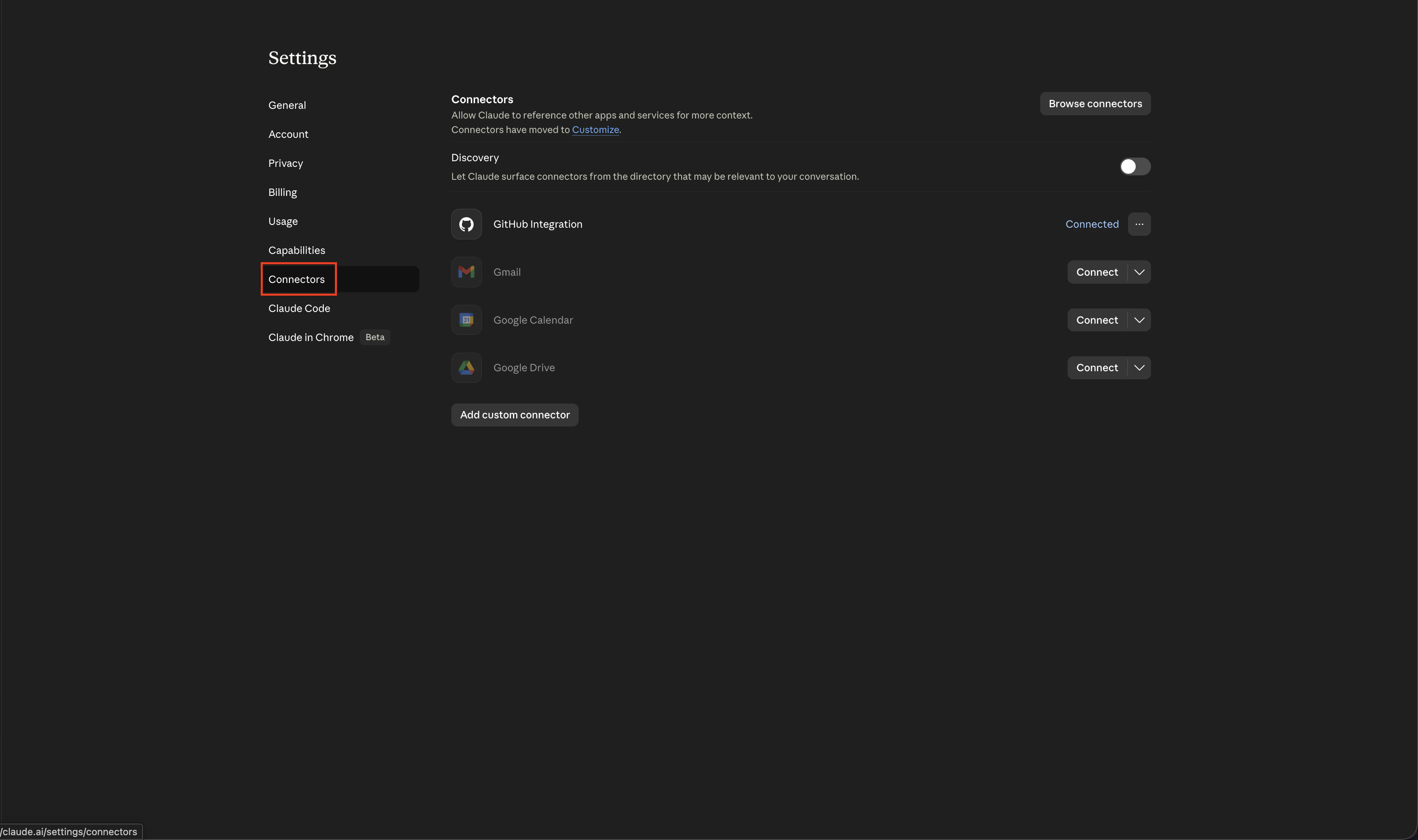
Go to [claude.ai/settings/connectors](https://claude.ai/settings/connectors), or from claude.ai navigate to **Settings → Connectors**.
 Click **Add custom connector**.
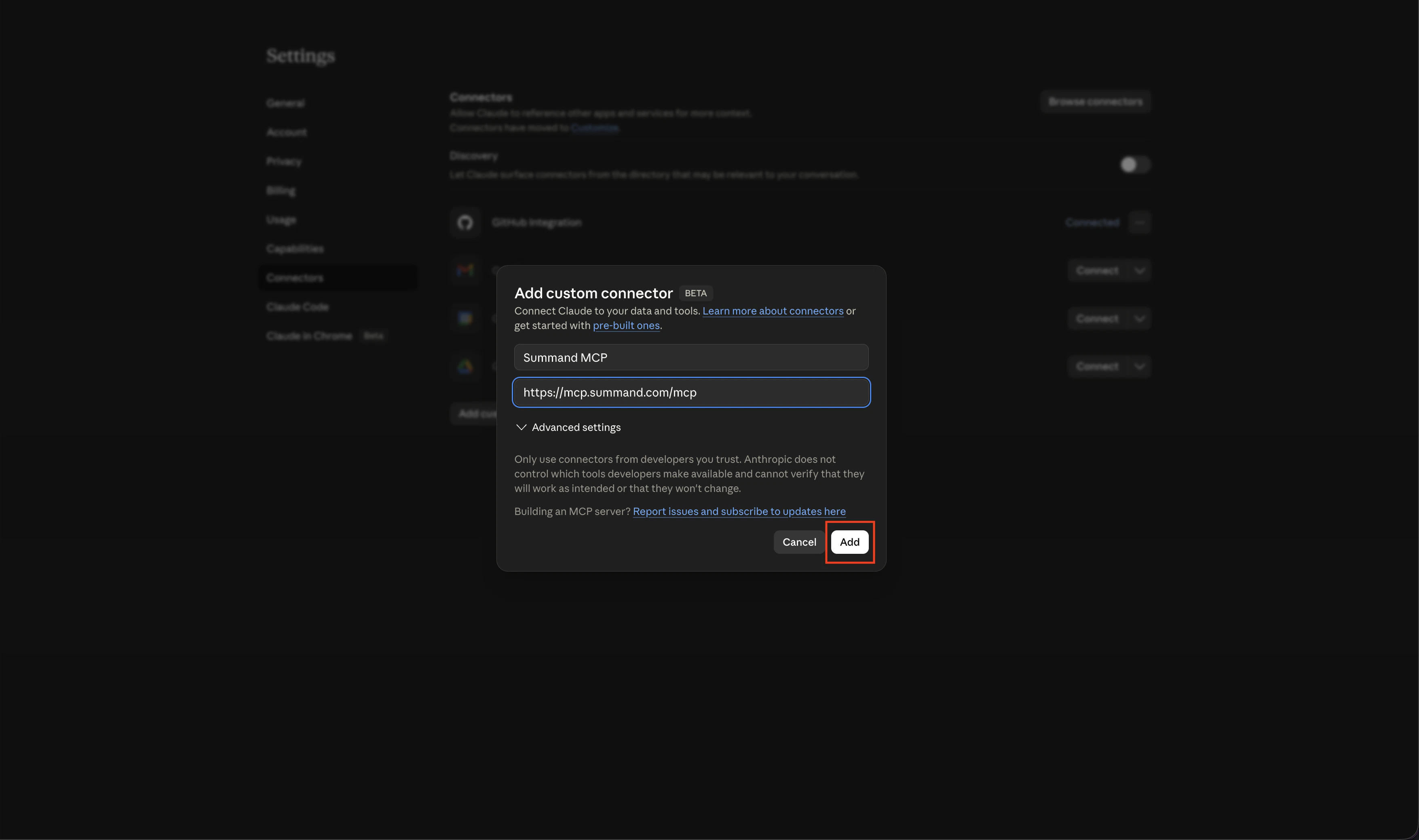
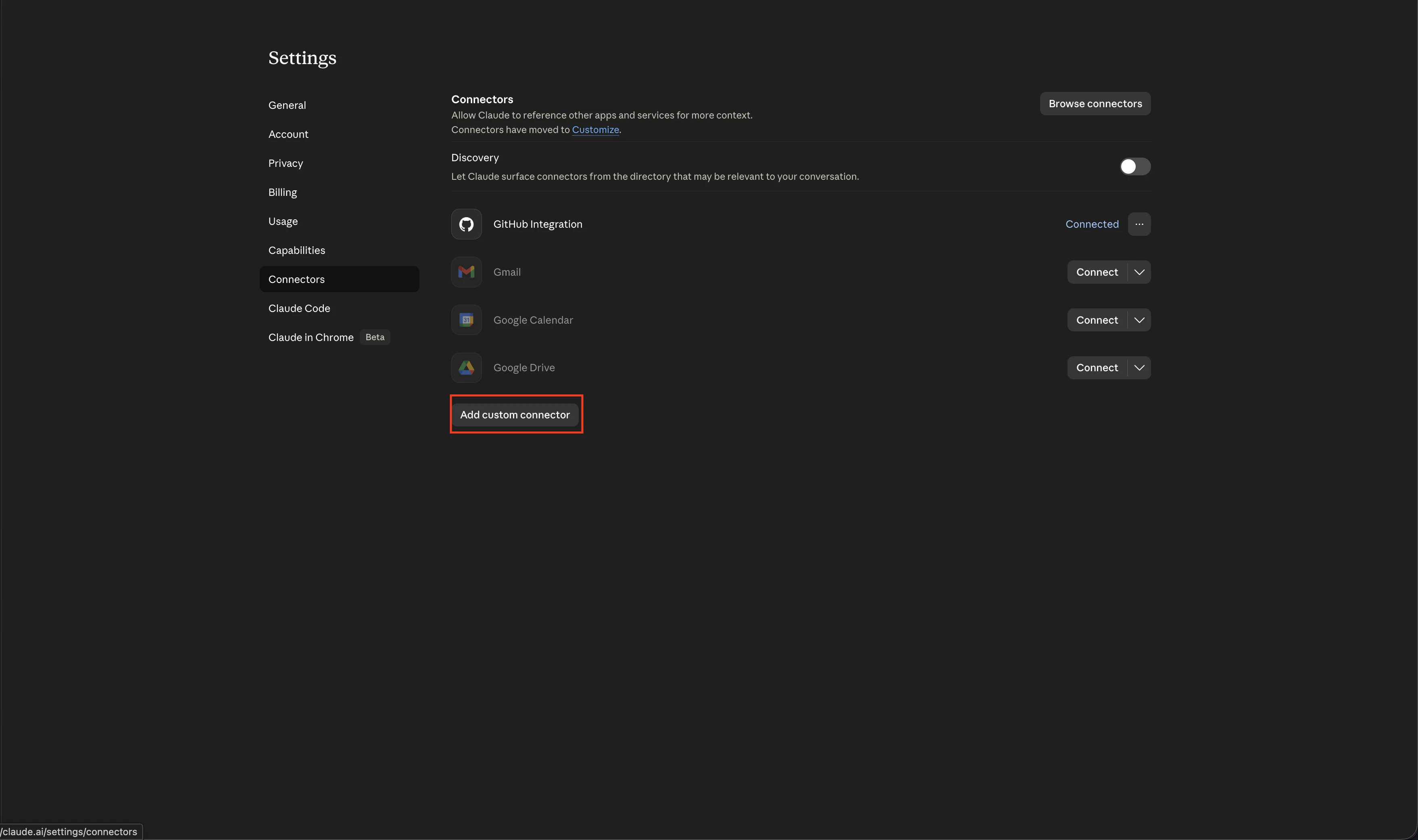 * **Name:** anything you want (e.g. `Summand MCP`)
* **Remote MCP server URL:** `https://mcp.summand.com/mcp`
Then click **Add**.
* **Name:** anything you want (e.g. `Summand MCP`)
* **Remote MCP server URL:** `https://mcp.summand.com/mcp`
Then click **Add**.
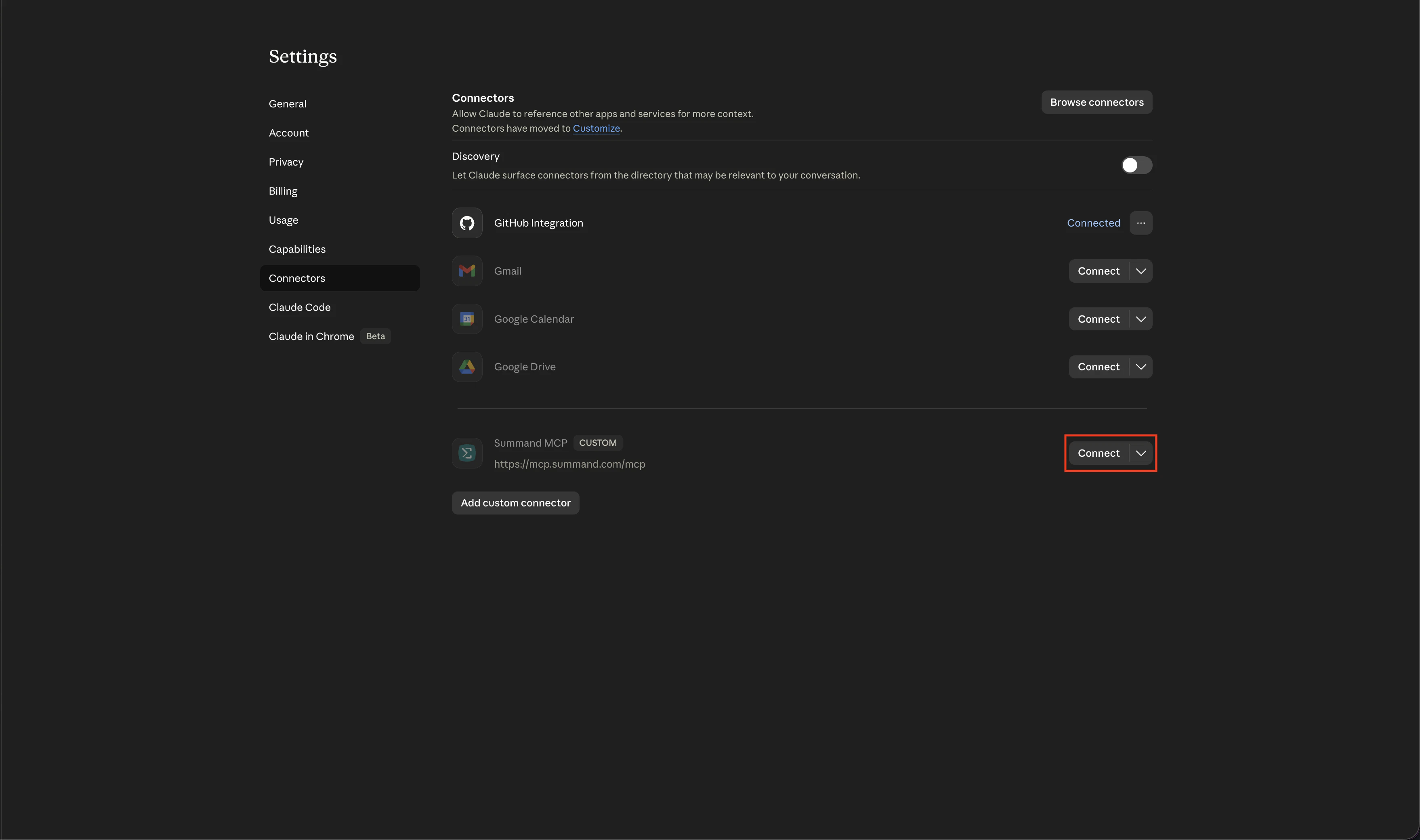
 Click **Connect** on the new entry.
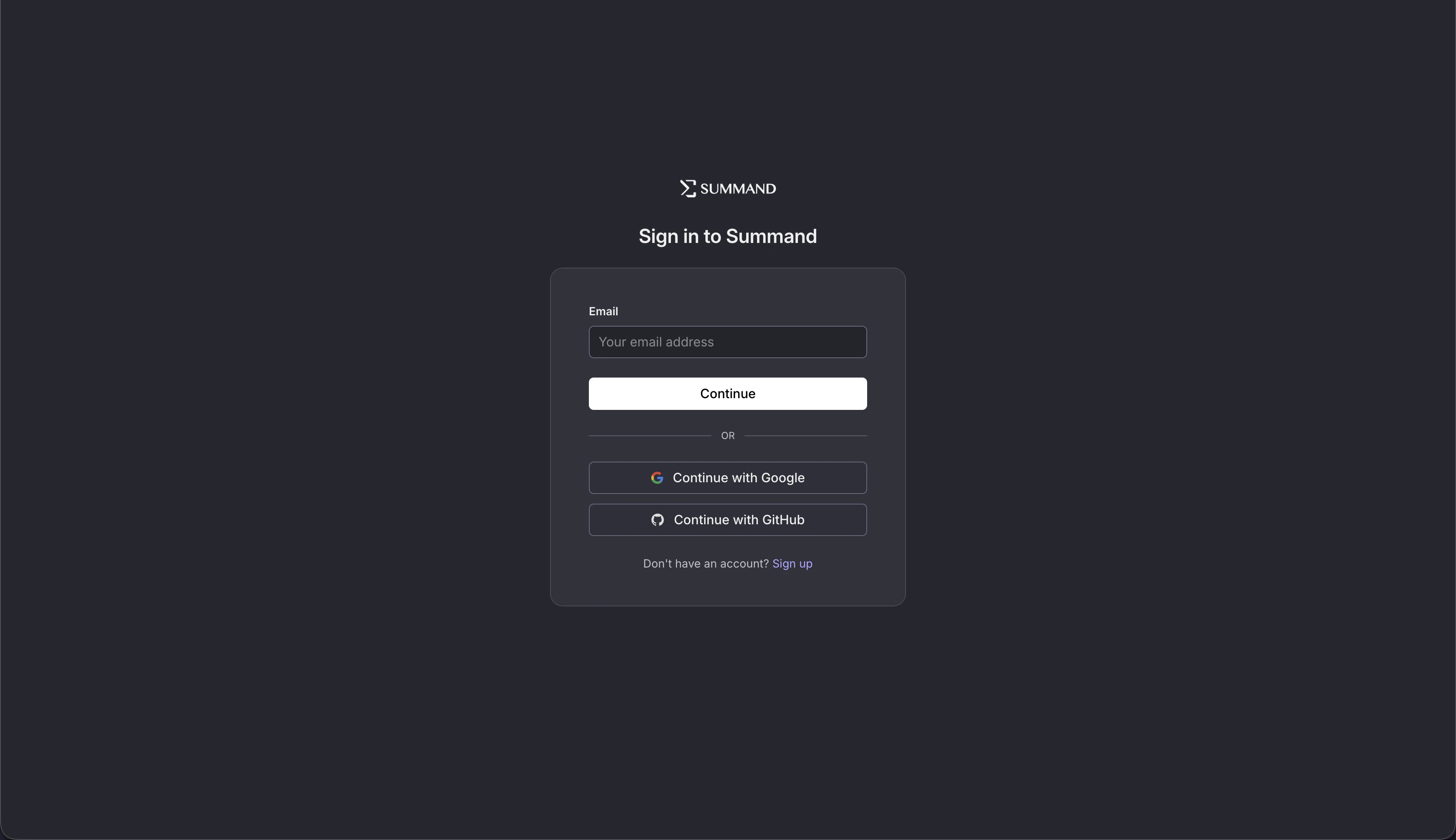
 You'll be redirected to `login.summand.com`. Sign in with the same account you use at summand.com.
 Back in claude.ai, start a new conversation and ask about your data — for example, "What data connectors do I have in Summand?" Claude will request permission to call the relevant tool.
## Add to ChatGPT
Go to [chatgpt.com/#settings/Connectors](https://chatgpt.com/#settings/Connectors), or from chatgpt.com navigate to **Settings → Apps**.
Back in claude.ai, start a new conversation and ask about your data — for example, "What data connectors do I have in Summand?" Claude will request permission to call the relevant tool.
## Add to ChatGPT
Go to [chatgpt.com/#settings/Connectors](https://chatgpt.com/#settings/Connectors), or from chatgpt.com navigate to **Settings → Apps**.
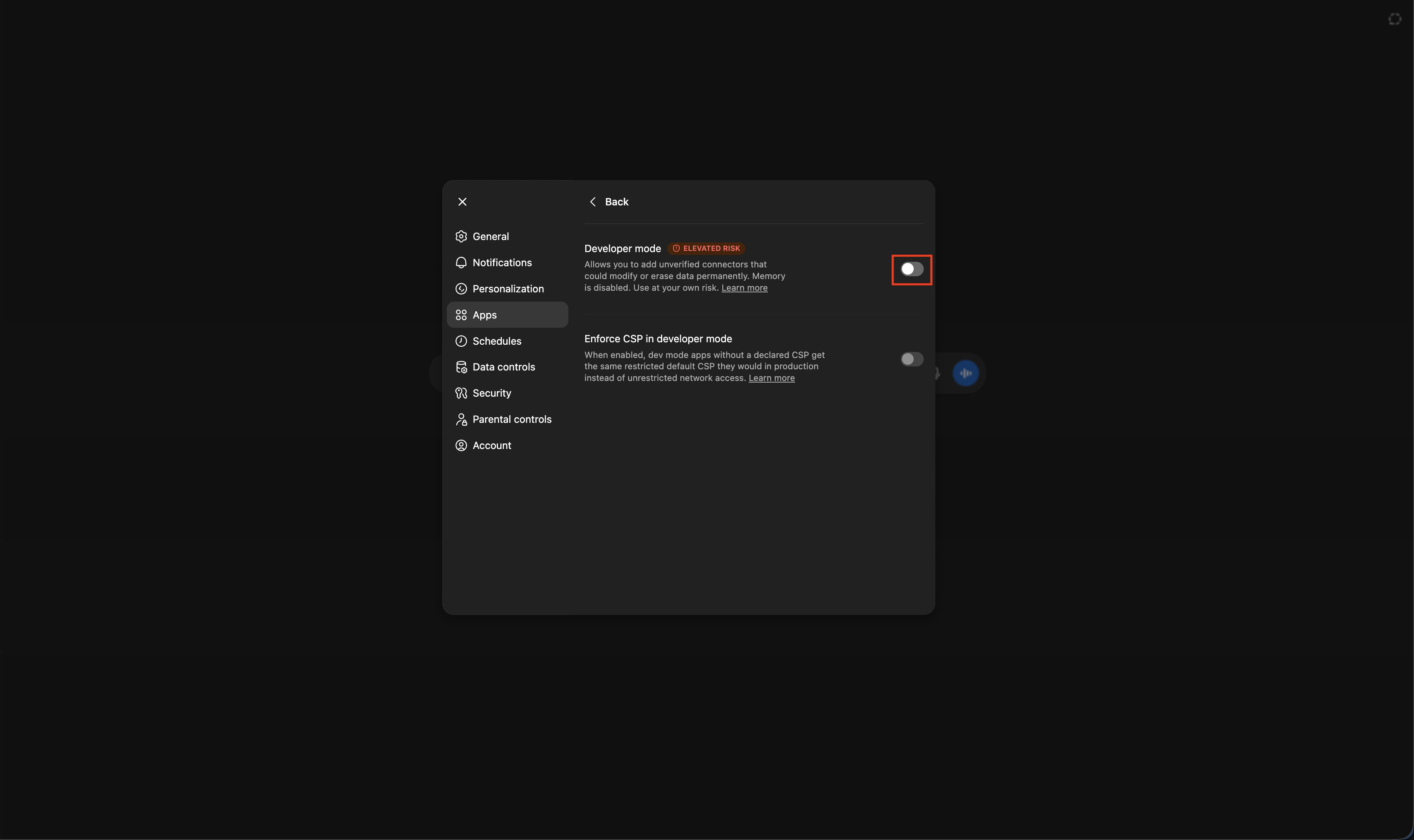
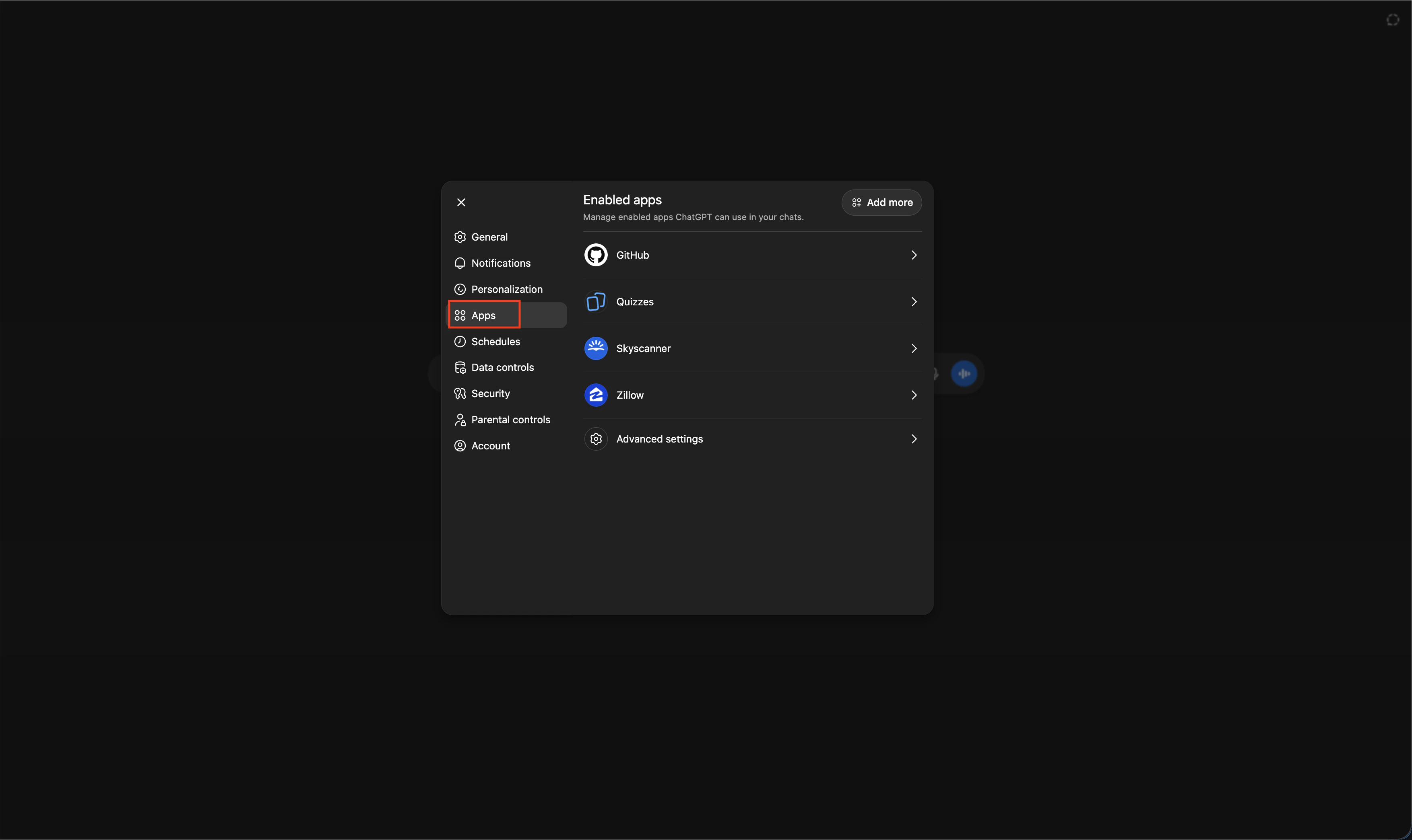 Open **Advanced settings** and toggle **Developer mode** on. This is required to connect to external MCP servers.
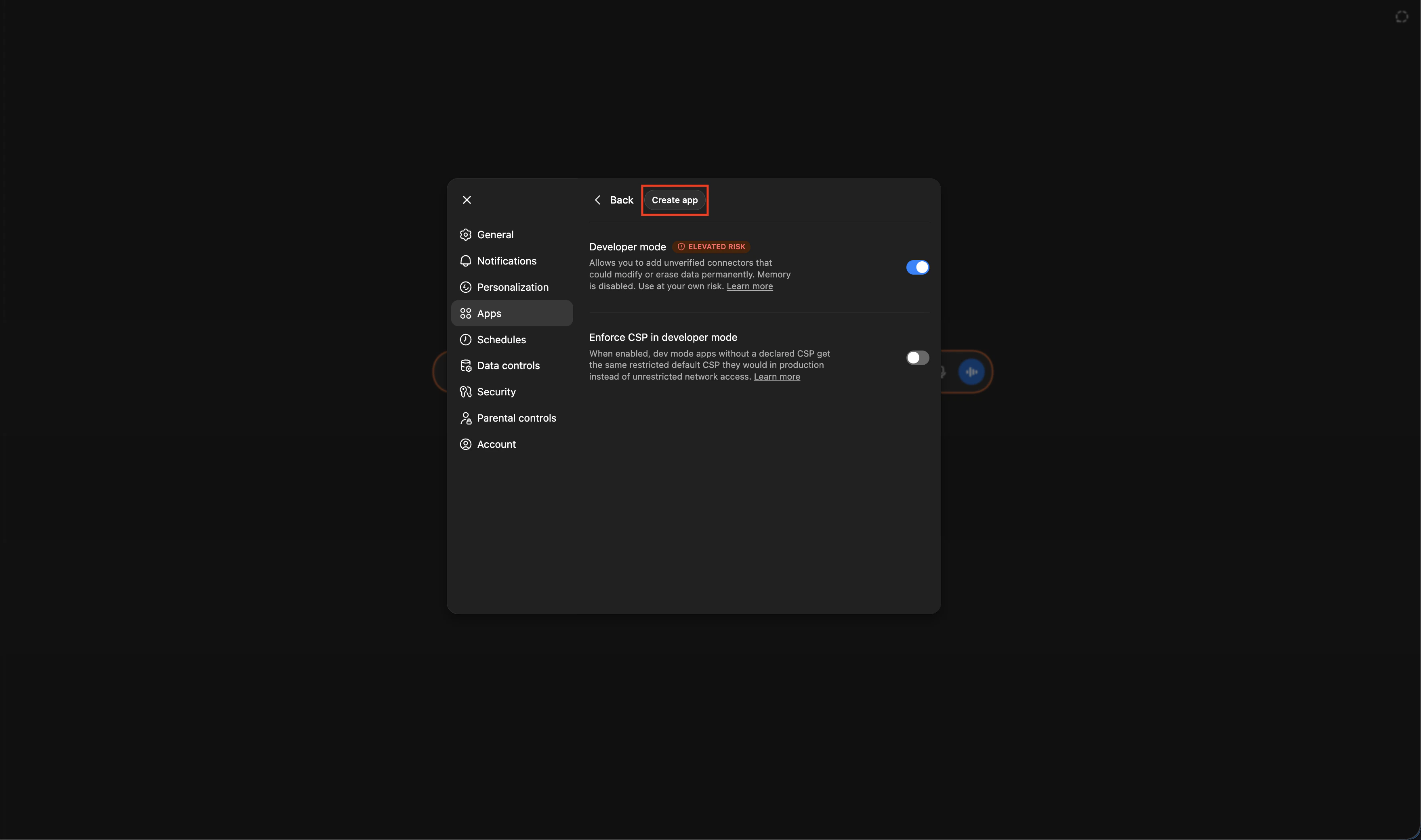
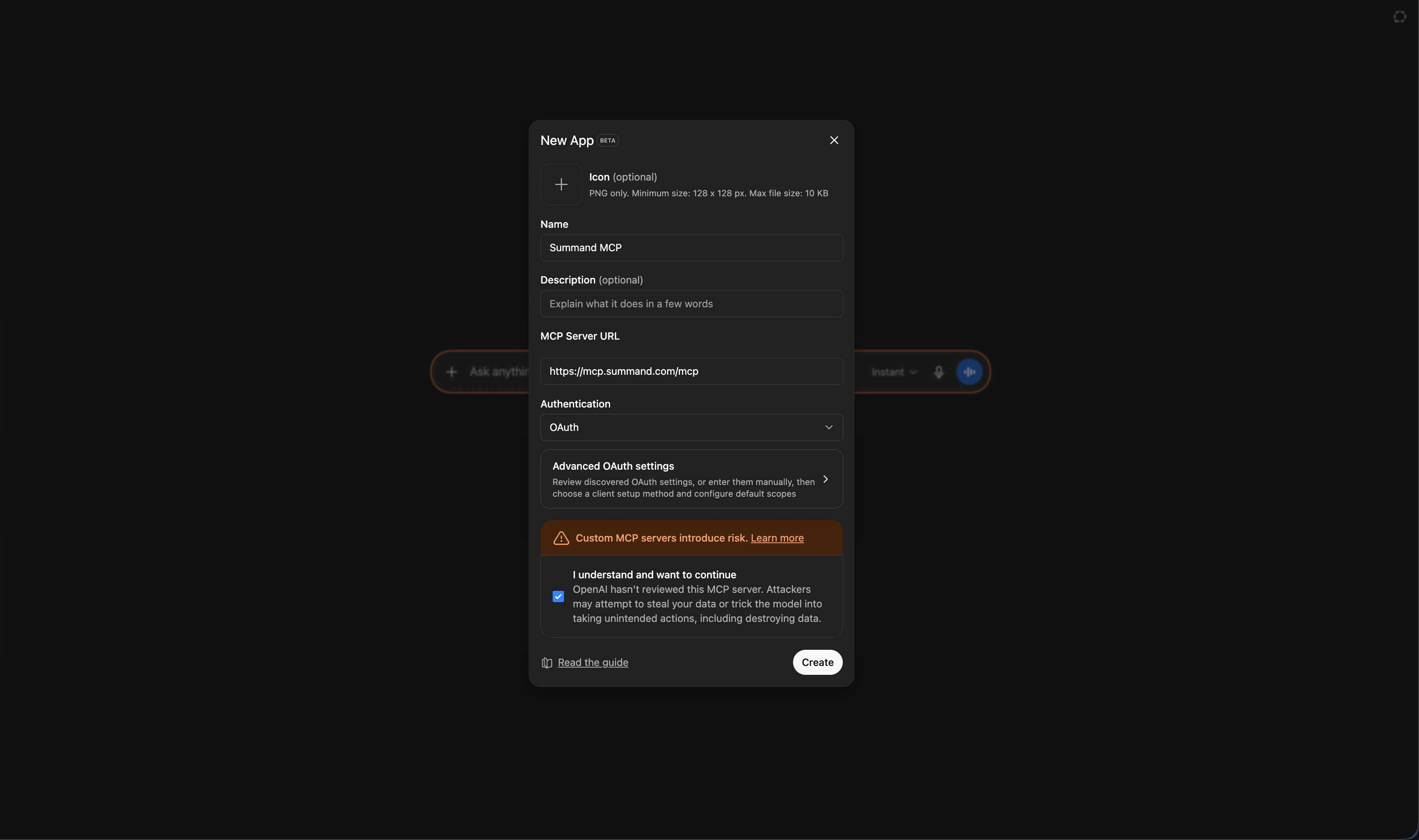
 Click **Create app** at the top of the modal.
 * **Name:** anything you want (e.g. `Summand MCP`)
* **MCP server URL:** `https://mcp.summand.com/mcp`
Check **I understand and want to continue**, then submit.
* **Name:** anything you want (e.g. `Summand MCP`)
* **MCP server URL:** `https://mcp.summand.com/mcp`
Check **I understand and want to continue**, then submit.
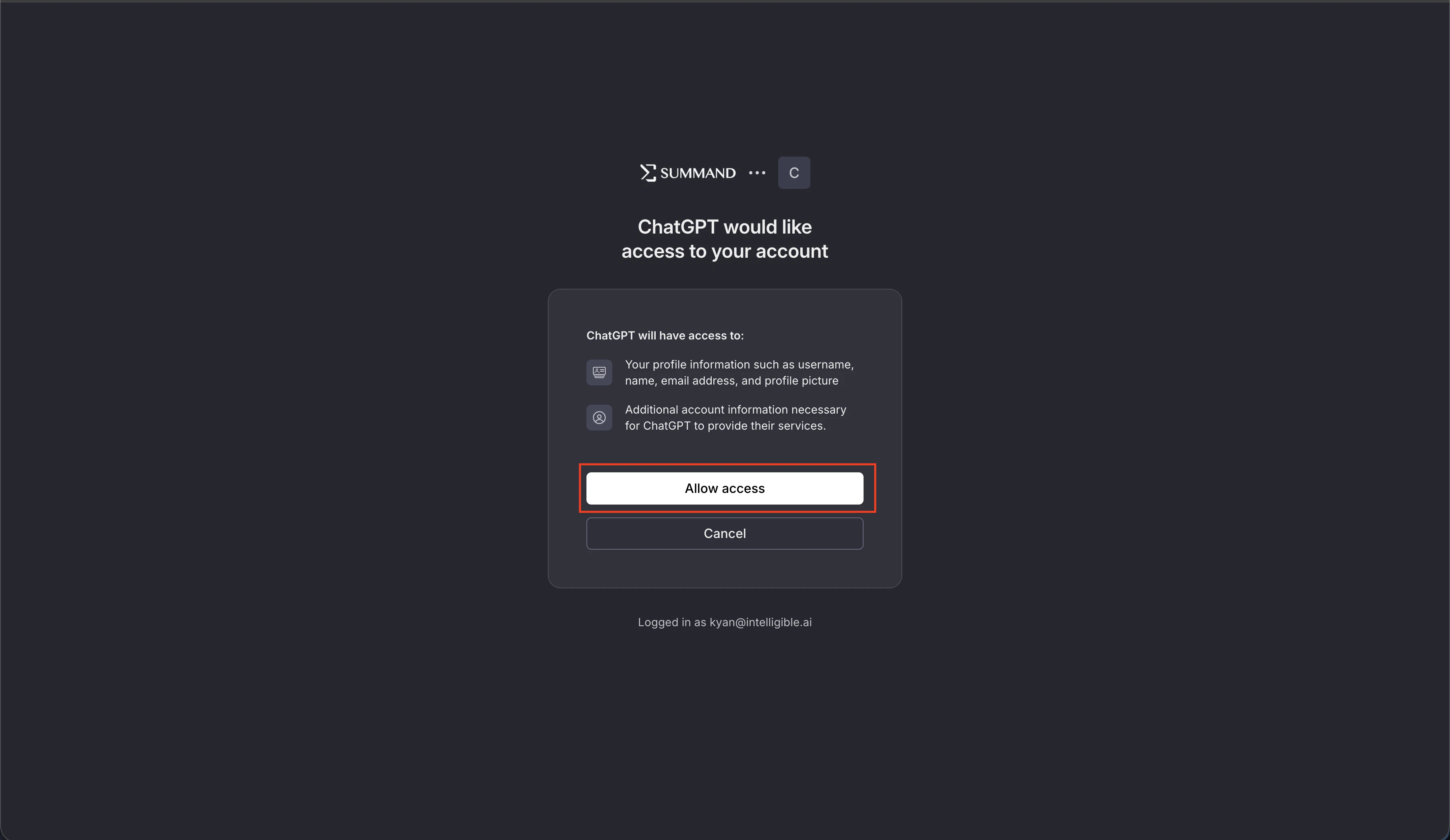
 You'll be redirected to `login.summand.com` with the prompt "ChatGPT would like access to your account". Click **Allow access**.
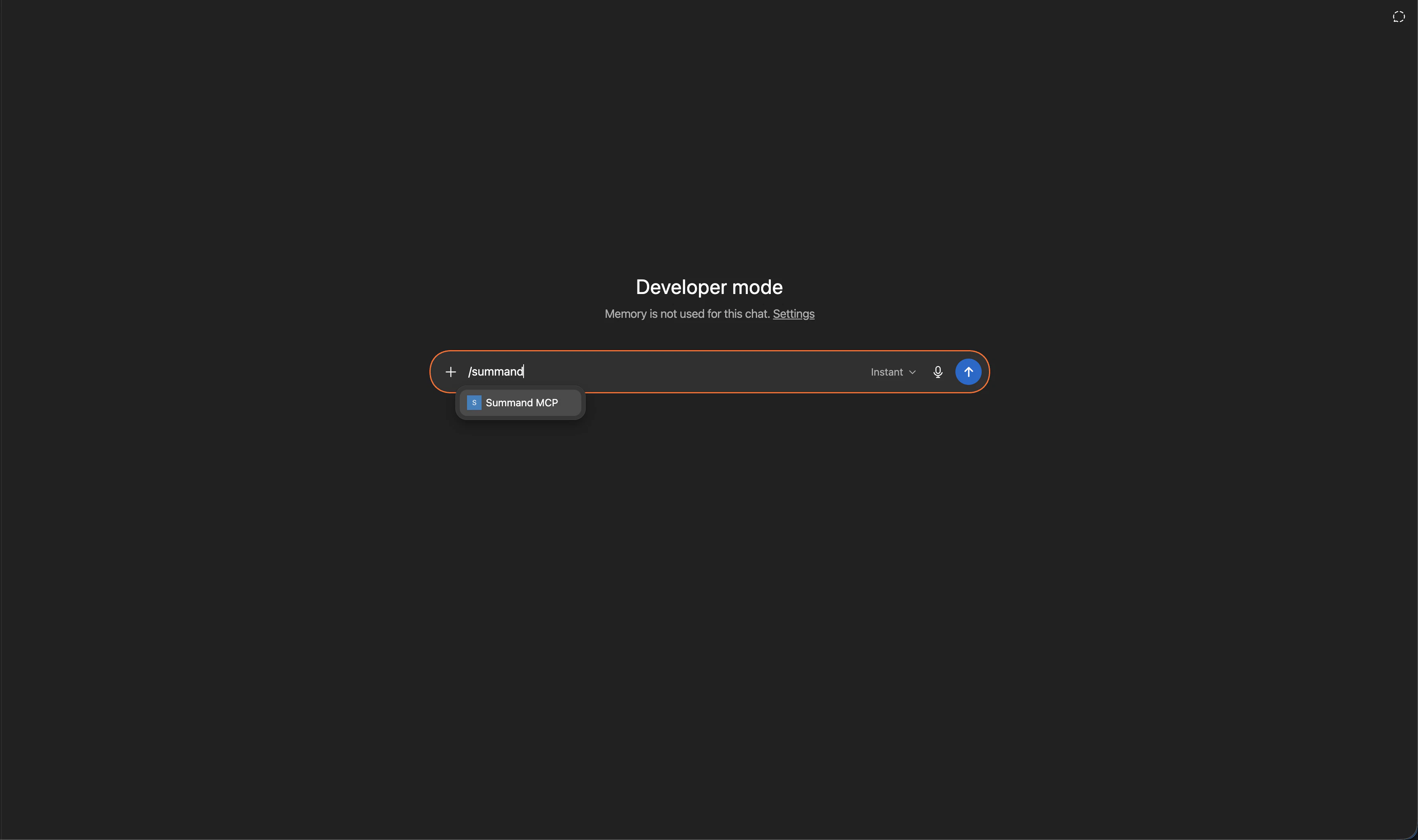
 Open a new ChatGPT chat and type `/summand` — you'll see the connector you just added, and the tools it exposes.
 ## Troubleshooting
* **Client can't discover the MCP server** — make sure you're using the full endpoint URL with `/mcp` at the end. `https://mcp.summand.com` on its own will not work — it must be `https://mcp.summand.com/mcp`.
* **`401` on every call** — your token expired or was revoked. Disconnect and reconnect the integration in your client.
* **`403 Forbidden`** — the resource isn't owned by or shared with your user. Check sharing in the dashboard.
## Troubleshooting
* **Client can't discover the MCP server** — make sure you're using the full endpoint URL with `/mcp` at the end. `https://mcp.summand.com` on its own will not work — it must be `https://mcp.summand.com/mcp`.
* **`401` on every call** — your token expired or was revoked. Disconnect and reconnect the integration in your client.
* **`403 Forbidden`** — the resource isn't owned by or shared with your user. Check sharing in the dashboard.