

yr_renovated is 0 when a house was never renovated”. You can tag the columns it covers and add a SQL check, and Summand tells you whether the data agrees.
Accepted findings are given to Ask Summand whenever it works with that dataset, and their checks run again after every sync.
Verdict and review
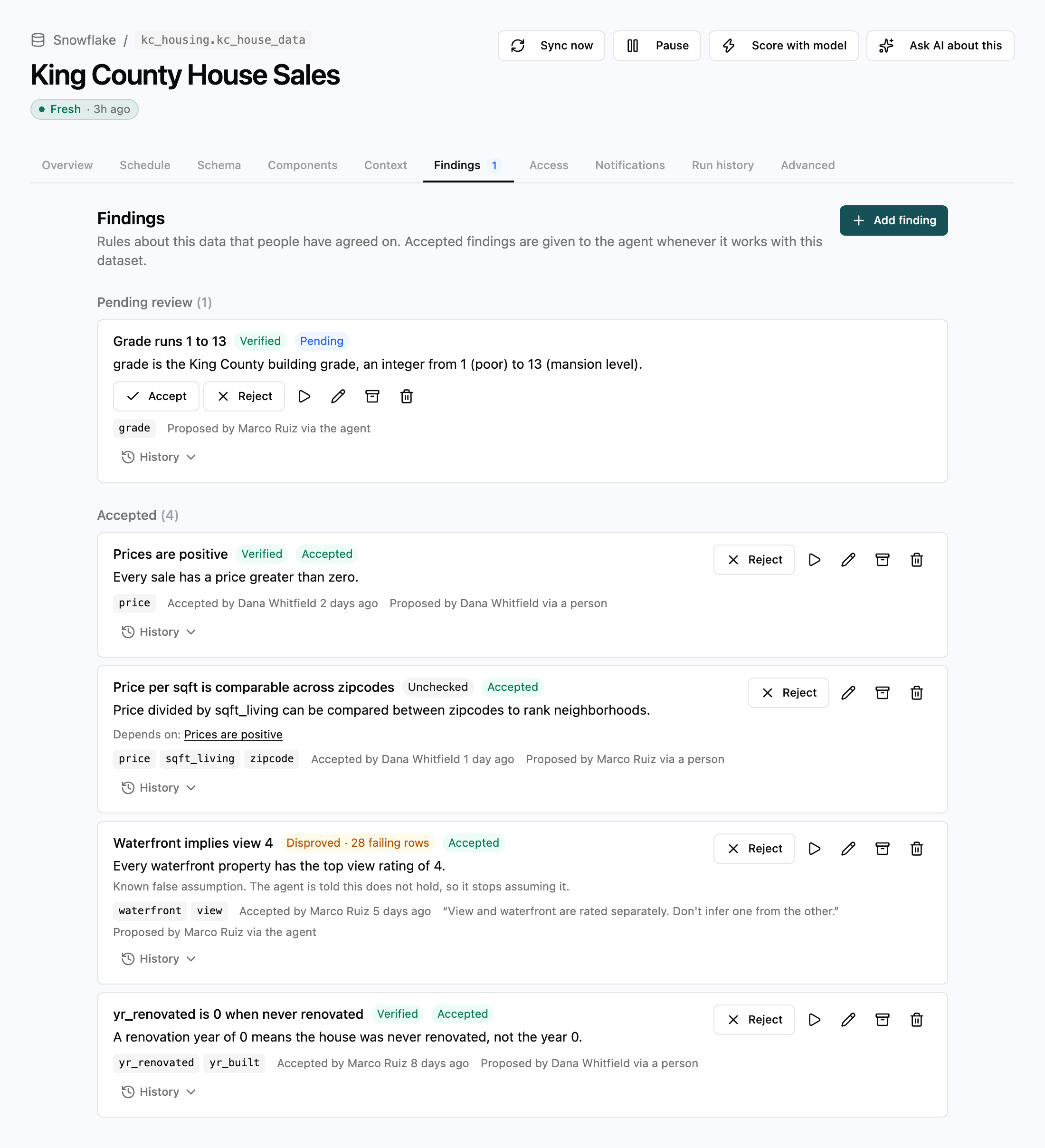
Each finding has two separate states. The verdict is what the data says, and the review is what a person says.
Only findings that are both accepted and active reach Ask Summand. Pending, rejected and retired findings never do, whatever their verdict.
You can accept a disproved finding. This is how you record an assumption that turned out to be wrong: accept “Every waterfront property has the top view rating of 4” while its check shows 28 failing rows, and Ask Summand is told it’s a known false assumption, so it stops making it.
Add a finding
- Open a dataset and go to the Findings tab.
- Click Add finding.
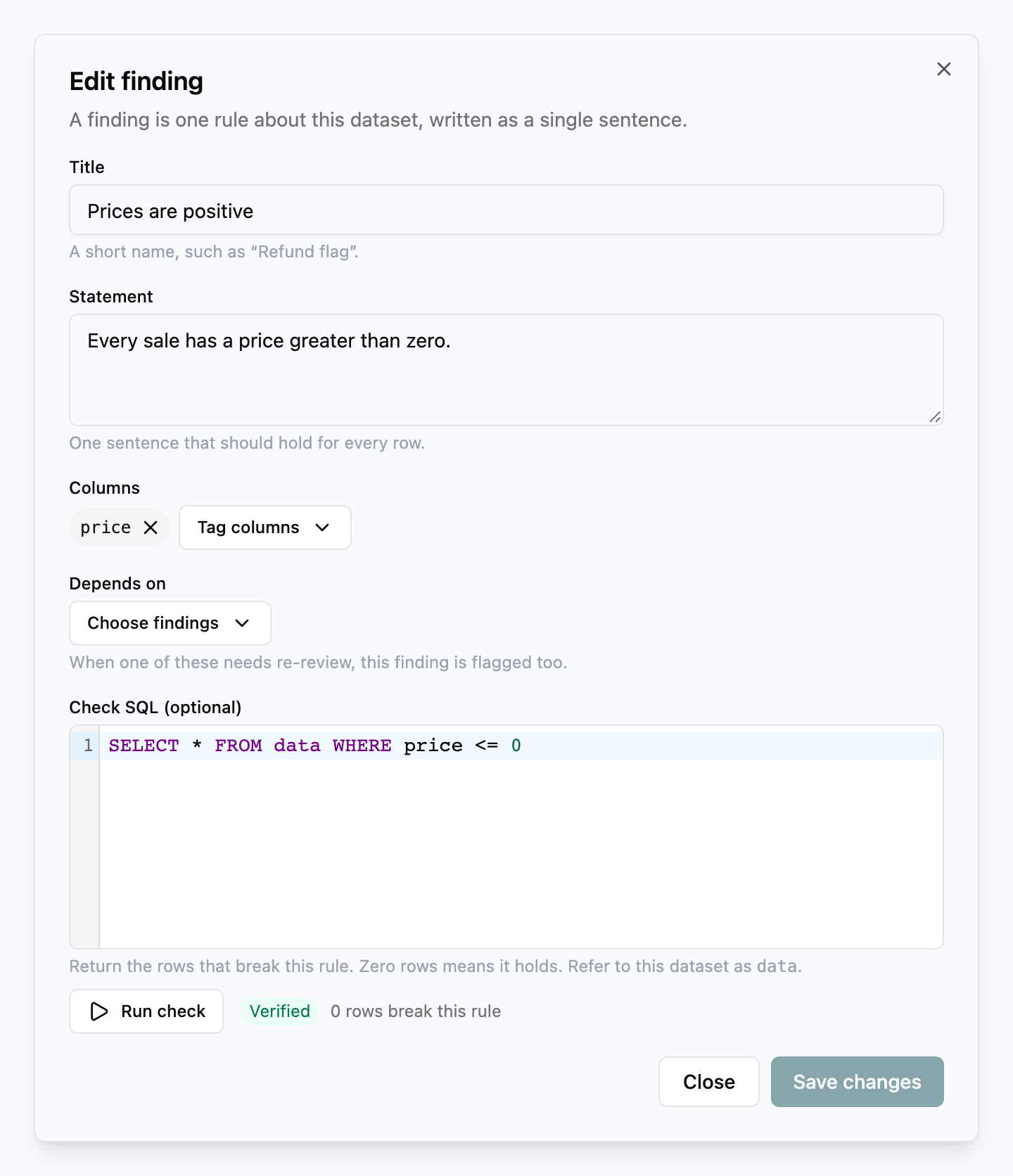
- Enter a Title (up to 120 characters) and a one-sentence Statement (up to 1,000 characters).
- Under Columns, click Tag columns and pick the columns the finding is about.
- If you can edit the dataset, write a query under Check SQL (optional).
- Click Add finding, or click Save and run check to save it and see the verdict without closing the dialog.
Write a check
A check is a query that returns the rows that break the statement. Zero rows means the statement holds and the finding is verified. One or more rows means it’s disproved. This is the same convention dbt uses for data tests. Some rules for check SQL:- Refer to the dataset’s table as
data. - It must be a single read-only
SELECT(aWITHclause is fine). Anything that writes or changes the schema is refused. - It can only read this dataset’s own table. Joins to other datasets are refused.
- It’s Athena SQL, the same dialect as the SQL editor.
- It has 30 seconds to run. A check that times out counts as a check error.
SELECT * is fine.
Examples for common rules:
Values in a range
No missing values
Unique key
Sign convention
Allowed values
Two columns that agree
NOT IN alone skips rows where status is null, which is why the query adds OR status IS NULL.
If a check can’t run, for example because a column it reads was dropped, the verdict stays as it was and the finding shows the error.
Review findings and who can do what
To review a pending finding, click Accept or Reject on it. You can add a note, and the reviewer, time and note show on the finding. History lists every change, review and check run. What you can do depends on your organization role and your access to the dataset (see Organizations and Sharing):
Editing the statement, the check, the columns or the dependencies of an accepted or rejected finding puts it back to pending, because the reviewer approved different content. Changing only the title keeps the review. Changing the check also resets the verdict to unchecked until the new query runs.
If someone else changes a finding while you have it open, your save is refused and the tab shows the latest version so you can try again.
Retire or delete
Retire a finding when it no longer applies but you want to keep it. A retired finding moves to the Retired group, isn’t given to Ask Summand and isn’t checked after syncs. You can reactivate it later. Deleting a finding removes it for everyone. You can’t delete a finding that other findings depend on. Summand refuses with aHAS_DEPENDENTS error and lists them. Remove it from their Depends on first, or retire it instead.
Dependencies
A finding can rely on others in the same dataset. “Price per sqft is comparable across zipcodes” only makes sense if “Prices are positive” holds. To link them, edit the finding and choose the findings it relies on under Depends on. A finding can depend on up to 20 others, and Summand refuses a link that would form a cycle. When an accepted finding is flagged, every accepted finding that depends on it, directly or further down the chain, is flagged too, with a note naming the finding that needs re-review. Pending and rejected findings pass the flag along but aren’t flagged themselves. A retired finding breaks the chain. When the upstream finding is fine again, the dependent findings’ flags clear.After a sync
When new data lands, Summand runs the checks of every active finding on the dataset again. This happens after:- CSV uploads and re-uploads
- Database syncs, whether you click Sync now or they run on a schedule (PostgreSQL, MySQL, Snowflake, Azure SQL and Delta Sharing)
- Successful Fivetran syncs, which check every dataset in the connection
INSERT, UPDATE or DELETE statements, or written to a table by an external Iceberg engine, doesn’t trigger checks either. Those findings update on the next sync, or when someone with edit access runs the check by hand.
For accepted findings, Summand compares the new result with the verdict the finding had when it was accepted. If they differ, or if the check fails to run, the finding is flagged Needs re-review on the Findings tab. A finding accepted as unchecked is only flagged if a check disproves it. The flag clears when a later sync gets the accepted result again. If the new result is correct and the finding still says what you want, click Re-confirm on its row. That records the current result as the one to compare against and clears the flag, and Summand records you as the reviewer. If the rule itself needs to change, edit the finding instead: the edit sends it back to pending, and accepting it again does the same thing. A finding flagged because something it depends on changed stays flagged until that finding is fixed or re-confirmed. Running a check by hand updates the verdict but doesn’t raise or clear a flag.
Pending and rejected findings get their verdict updated after a sync, but they are never flagged.
To hear about flags without opening the tab, add an alert on the dataset’s Notifications tab and choose Finding changed. It goes to email, Slack or a webhook. You get one message per sync that lists every accepted finding that was flagged or recovered, and nothing more while a finding stays flagged.
Ask Summand
Accepted, active findings are added to Ask Summand’s context for the dataset you’re chatting about and any other datasets in the conversation. Disproved findings are labelled as known false assumptions, and flagged ones are marked as needing re-review. If a dataset has a lot of findings, some may be left out to fit the context. Findings tagged with columns you name in your message are kept first. Ask Summand also suggests findings. When it confirms or disproves something during a conversation, it can show a Proposed finding card with the statement, columns, check SQL and the evidence it found. Click Accept to save it as a pending finding, or Dismiss. Accepting the card doesn’t accept the finding: it lands in Pending review like any other. A card with check SQL can only be saved by someone with edit access to the dataset.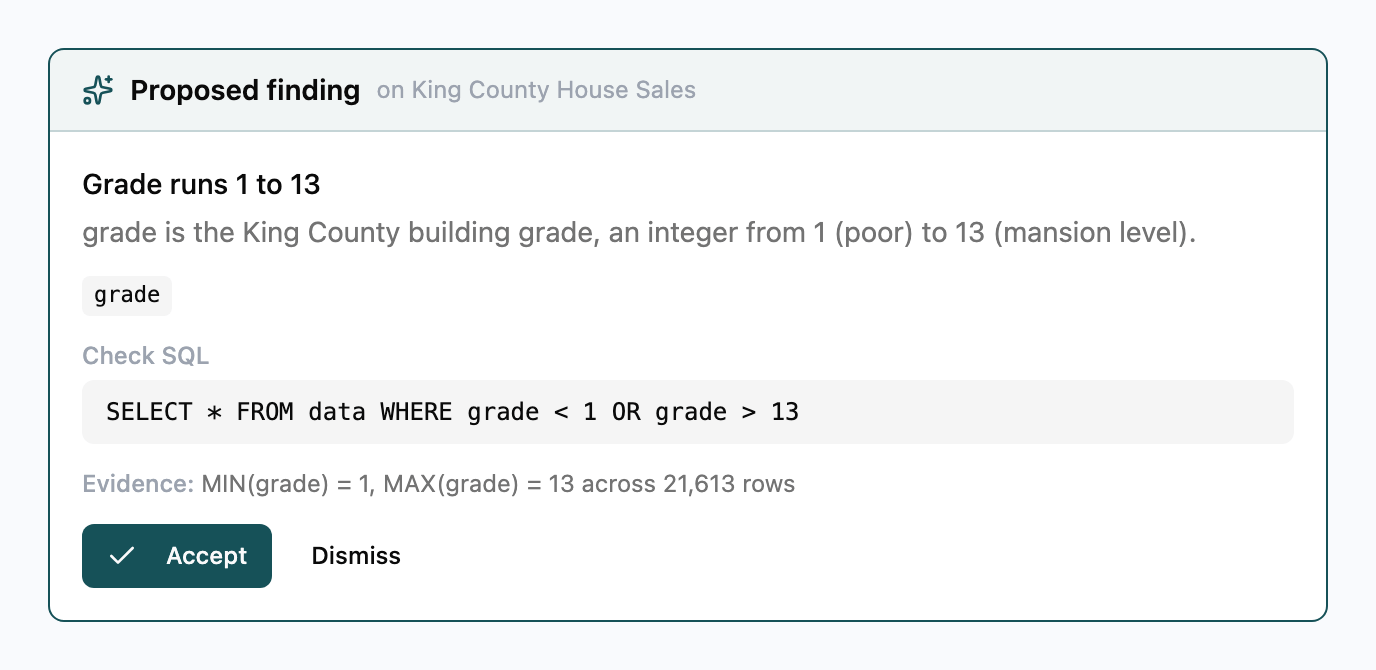
MCP tools
The Summand MCP server has five tools for findings. Each one takes a dataset name or id asdataset. describe_dataset also returns the dataset’s accepted, active findings.
The four tools that change something show a preview first and only run when you confirm in your client. They need the Member org role or higher. Pass
expectedVersion from list_findings to review_finding or update_finding and the call fails if the finding changed after you read it.
Limits
- A check can only read its own dataset’s table. Checks across datasets aren’t supported.
- Datasets with a row filter or column mask can have findings, but not checks. Checks run without your row policy, so an unfiltered count would reveal what the policy hides.
- A dataset has to finish its first ingestion before a check can be added.
- Only the count of failing rows is stored, never the rows.
- Check SQL is limited to 10,000 characters and 30 seconds of run time.
- A finding can tag up to 50 columns and depend on up to 20 other findings.
- After a sync, up to 80 checks run, oldest-checked first. A Fivetran connection shares those 80 across its datasets. Findings that miss out are checked on a later sync.